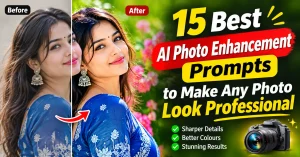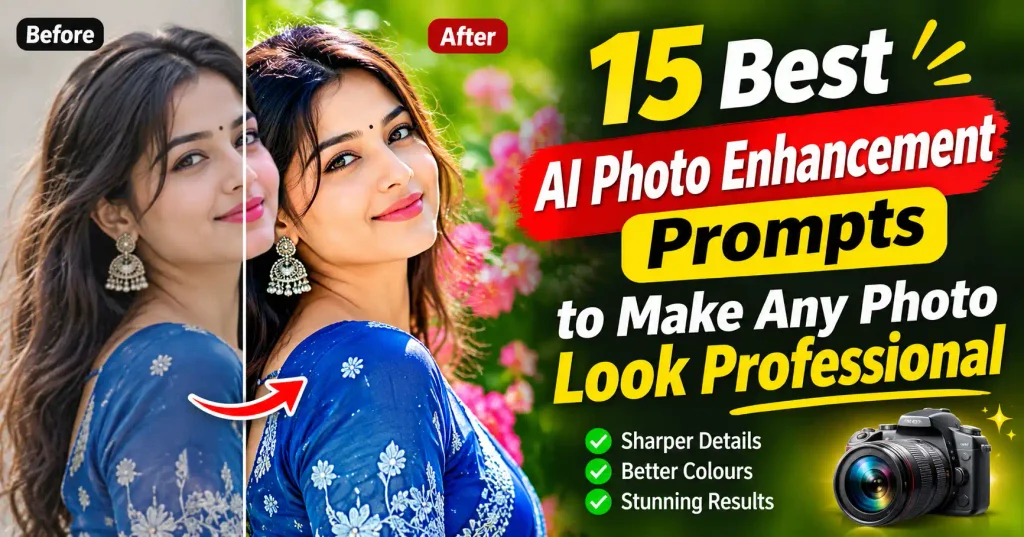

Nowadays, if you do not know Photoshop editing or have zero skills in image editing, AI photo enhancement prompts can help transform ordinary pictures into professional-looking photographs.
You can use this article to get realistic photo enhancement prompts that help you preserve natural facial details.
The prompts in this article save you time from experimenting with different prompts,
and you can forget about comparing AI image results because you are going to discover easy one-click copy-paste prompts for your own style of editing.
Also read
How to Create a Dhanteras Wish Video with Your Own Photo and Name Using AI (opens in a new tab)
Today, in this article, we will see how you can create a Dhanteras status video using your own image and…
A good AI photo enhancement prompt should improve sharpness and lighting, including colour balance and image details.
You need to add unnecessarily changing the original photograph using a prompt because all these prompts are tested multiple times before being revealed in this article.
Let’s dive into the real world of photo enhancing without Lightroom presets or Photoshop LUT files.
What Are AI Photo Enhancement Prompts and How Do They Work?
AI photo enhancement prompts are simple text instructions that tell an AI tool how to improve the quality and appearance of an existing photograph.
Now, with the help of these prompts, you can make an ordinary image look clearer, sharper, and more professional. The best thing is you do not need to spend hours editing it manually.
Also read
Wedding Cinematic 8K Video Prompt (opens in a new tab)
Welcome to PhotoEditPrompts.com. You can create a realistic 8K cinematic wedding video using 8K video prompts. AI makes creating cinematic…
For example, you can use an AI photo enhancement prompt to improve image quality and also adjust lighting.
More than that, you can correct colours, restore facial details, reduce unwanted noise, and create a professional DSLR-style appearance.
You can also use specific instructions to improve a portrait, including enhancing natural skin texture or converting a low-quality image into a high-resolution photograph.
Nowadays, AI tools like Google Gemini and ChatGPT make photo enhancement easier.
This is true: many of us have little or no photo editing experience. But you simply upload your photograph, enter a suitable photo enhancement prompt, and let the AI tool process your instructions.

Also read
7 Happy dhanteras greetings with name (opens in a new tab)
This Dhanteras celebration is extra special with beautiful Happy Dhanteras greetings with name. You can create personalized festive wishes and…
However, the final result depends on the quality of your original photograph and how clearly you describe the changes you want in a prompt.
A well-written prompt can help the AI understand whether you want natural photo enhancement, along with professional portrait retouching, cinematic lighting, or 4K image quality.
In this article, I have shared 15 carefully written AI photo enhancement prompts that you can copy easily.
These prompts will help you improve your photographs while keeping the original facial features the same and the natural appearance as close to the reference image as possible.
Also read
Create a Realistic AI Video of Hanuman Ji Free Guide (opens in a new tab)
A few days ago, when I went to my village, I saw a Hanuman Ji temple. After seeing the Hanuman…
How AI Photo Enhancement Improves Image Quality
AI photo enhancement improves image quality by analysing different parts of a photograph.
A good prompt can make adjustments to create a clearer, sharper, and more balanced result.
Unlike traditional photo editing, where you need to adjust brightness, contrast, sharpness, and colours manually, AI-powered tools can help automate many of these editing tasks.
When you upload an image to an AI photo editing tool, it analyses details, for example, lighting, colours, facial features, background, and image sharpness.
As per your instructions, it can make several improvements to the original photograph.
Here are some common ways AI can improve your photo quality:
- Improves Image Sharpness: AI can enhance visible details and make slightly soft or blurry photographs appear clearer. But it cannot always recover details that were never captured in the original image.
- Enhances Lighting and Exposure: If your photograph looks too dark or too bright, AI can help balance the exposure and highlights. You can even add shadows to create a more natural appearance.
- Improves Colour and Contrast: AI can adjust colour tones, saturation, and contrast to make your photographs look more vibrant. And for that, AI image editors never do any over-editing.
- Enhances Facial Details: If you are looking for portrait photographs, AI can improve the visibility of eyes, hair, and other facial details. AI can easily maintain a natural appearance.
- Creates Natural Skin Texture: A good photo enhancement prompt can instruct AI to reduce minor imperfections while preserving natural skin texture, pores, and facial characteristics.
- Reduces Image Noise: AI tools can reduce unwanted grain and digital noise. This happens especially in photographs captured in low-light conditions.
- Improves Background Appearance: This is true; depending on the editing tool, AI can enhance background details and balance colours. You can even achieve a professional-looking depth of field.
- Upscales Image Resolution: There are many paid AI tools that can enlarge low-resolution photographs and generate additional details. But you can use a prompt to create higher-resolution versions of images. The actual result depends on the original image and the tool being used.
Now, you can use the right AI photo enhancement prompts and combine several of these improvements in a single instruction.
For example, you can ask an AI tool to enhance image sharpness, improve natural lighting, and correct colours, including preserving the original facial features.
This is especially useful when you want to turn an ordinary mobile photograph into a more professional-looking portrait without making it look artificial.
Why Use AI Prompts Instead of Manual Photo Editing?
We all know traditional photo editing requires time, patience, and some skill with editing software.
If you want to improve a portrait, you may need to adjust brightness, contrast, sharpness, skin texture, colour tones, and several other settings manually.
As a beginner, understanding all these editing options can sometimes be confusing and time-consuming.
This is where AI photo editing prompts become useful.
Instead of adjusting every setting yourself, you can simply describe the result you want in natural language.
An AI-powered image editing tool can understand your instructions and make the requested changes to your photograph.
Let’s take an example: if you want to make an ordinary mobile photograph look like a professional DSLR portrait,
you can write a prompt asking the AI to improve image sharpness and enhance natural lighting with proper lighting.
You can also create a soft background blur like DSLR-style and maintain the original facial features.
Here are some important reasons why using AI prompts can be easier than traditional manual photo editing.
- Saves Time and Effort: You don’t need to spend a long time adjusting different editing settings. A well-written AI photo enhancement prompt can request multiple improvements in one click.
- Easy for Beginners: You don’t need advanced Photoshop skills or professional photo editing knowledge. You can describe the changes you want using simple English.
- Multiple Editing Options: You can experiment with different styles, for example, professional DSLR photography, cinematic portraits, studio lighting, natural colour correction, and creative photo enhancement.
- Better Control Over Editing: Instead of applying the same filter to every photograph, you can give specific instructions about lighting, background, colours, including sharpness and skin texture.
- Natural-Looking Results: You can instruct the AI to preserve the original face and facial expression. Your prompt can upscale hairstyle and skin texture instead of applying excessive beauty effects.
- Easy to Experiment: If you don’t like the first result, you can modify your prompt and try another. This makes it easier to explore different creative possibilities.
- No Complicated Editing Process: Many AI image editing tools allow you to upload a photograph and describe the required changes directly. This makes photo enhancement more accessible to everyday users.
However, AI photo editing is not always a replacement for professional manual editing.
Sometimes AI may change facial details, produce unnatural textures, or misunderstand your instructions.
For important photographs, you may still need additional manual adjustments to achieve the exact result.
Overall, AI photo enhancement prompts are a convenient option for people who want to improve their photographs quickly without learning complicated editing techniques.
With the right instructions, you can create attractive, realistic, and professional-looking images using supported AI tools.
Which AI Tools Can Enhance Your Photos?
There are several AI-powered tools available on the internet that can help you improve your photographs.
Now you can enhance images without any advanced photo editing skills.
There are some tools that allow you to upload an existing image and describe the changes you want,
and some others provide dedicated features for portrait retouching, image sharpening, background enhancement, and resolution upscaling.
If you are looking for an easy way to enhance your photos using text instructions, you can try tools like Google Gemini and ChatGPT.
These tools can help you create and edit images using natural language.
Here are some popular AI tools you can consider for photo enhancement.
1. Google Gemini
Google Gemini is a useful and best option for those who want to edit photographs using simple text instructions.
The interface of Gemini is very simple, and you can upload a supported image and describe the changes you want to make.
For example, you can ask Gemini to improve the following on your image: lighting, enhance image sharpness, and correct colours.
All right, Gemini can create a professional portrait look or improve the background as per your instructions.
The best thing is it keeps the original facial features as close as possible.
Benefits: You must try Gemini for portrait enhancement or creative image editing with natural-language instructions in your own language.
Website: https://gemini.google.com/
2. ChatGPT
ChatGPT is another famous and trending image enhancing and editing tool for photographs.
You can upload a reference image and explain or give instructions on how you want it to look.
For example, you can use a ChatGPT photo enhancement prompt to request a professional DSLR appearance, along with natural skin texture.
A good prompt can add balanced lighting, sharper details, or cinematic colour grading details too.
You can also refine your instructions if the first result does not match your expectations.
Benefit: You can add detailed photo editing instructions for portrait enhancement or creative transformations and experiment with different photography styles.
Website: https://chatgpt.com/
3. Other AI Photo Editing Tools
Apart from Gemini and ChatGPT, there are several dedicated applications that offer AI-powered photo enhancement features.
These tools may be useful when you want to improve image resolution, remove noise, or retouch portraits.
Here are some popular options:
- Adobe Photoshop: Offers AI-assisted editing features alongside advanced manual photo editing tools.
- Canva: Useful for quick photo adjustments and creative designs.
- Remini: Known for AI-based photo enhancement and face detail improvement.
- Picsart: Provides creative photo editing, retouching, and AI-assisted tools.
Benefits: You can perform dedicated image enhancement and photo restoration along with portrait image generation.
You can also do retouching and quick creative editing on these tools.
Also read
11 Best Panchmukhi Hanuman Wallpaper 4K: Gemini AI Wallpaper Prompts (opens in a new tab)
This blog is for Hanuman lovers and you can best Panchmukhi Hanuman Wallpaper 4K along with Gemini Ai prompts. Are…
Keep in mind that the available features may change in each tool, and free usage has limitations.
The output quality can vary between tools and subscription plans.
How to Use AI Photo Enhancement Prompts to Improve Your Photos
AI photo enhancement prompts are easy to use, even if you have no professional photo editing experience.
You do not need to understand complicated editing tools or manually adjust every detail of an image.
You can use AI tools, for example, ChatGPT, Gemini, and other AI image editors, and you can improve your photos simply by uploading an image and describing the changes you want.
Follow these simple steps to get better results from AI photo enhancement prompts.
- Step 1: Choose an AI Photo Editing ToolFirst, choose an AI image editing tool (ChatGPT or Gemini or another AI image editing tool) that supports image uploads and prompt-based editing. You can choose a tool depending on the type of photo enhancement you want to achieve.
- Step 2: Upload Your Original PhotoAfter selecting your AI tool, upload the original photograph you want to improve. It can be a selfie, portrait, wedding photograph, family picture, or any other image. For better results, try to upload a clear, high-quality photograph. Also, make sure the face and important details are visible in your photo.
- Step 3: Write a Detailed AI Photo Enhancement PromptThis is the most important step. Instead of simply writing “Improve my photo,” provide clear instructions about the changes you want. But you do not need to worry about it because this page has 15 Best AI Photo Enhancement Prompts to Make Any Photo Look Professional.
- Step 4: Generate and Review the Enhanced PhotoOnce you have entered your prompt, submit it and allow the AI tool to process your image. After generating the result, you must carefully check whether the AI has maintained the original facial features, hairstyle, clothing, and overall composition. If you are not satisfied with the result, you can provide additional instructions to correct specific details.
- Step 5: Download and Save Your Enhanced ImageWhen you are happy with the final result, download the enhanced photograph and save it to your device.
You can now use your improved photo for Instagram posts or Facebook.
Now you can create more images for your profile pictures, wedding albums, YouTube thumbnails, or other creative projects.
Tips that can improve your prompts
Here are some tips that can improve your prompts.
Always mention that the AI should preserve the original facial identity when enhancing personal portraits.
This helps reduce unwanted changes to facial features and makes the final image look more natural and realistic.
You must mention these points in your prompt:
- Improve overall image quality and sharpness.
- Enhance brightness, exposure, and natural colours.
- Improve facial details while maintaining the original facial identity.
- Remove unwanted noise and image blur.
- Improve skin texture without making it look artificial.
- Add professional DSLR-style lighting and realistic depth of field.
The more clearly you describe your requirements, the easier it is for the AI tool to understand your editing instructions.
15 Best AI Photo Enhancement Prompts to Make Any Photo Look Professional
If you want to make your ordinary photos look more professional, AI photo enhancement prompts can help you achieve impressive results without spending hours editing images manually.
Just ask yourself: do you want to enhance a selfie, improve an old photograph, or create a professional DSLR portrait?
Whether you want to give your pictures a cinematic look, the right AI prompt can make a big difference.
On this page below, I have shared 15 carefully written AI photo enhancement prompts that you can copy and use with popular AI image editing tools like ChatGPT and Google Gemini.
Note that you must upload your original photo first, then copy and paste your preferred prompt.
All these prompts are designed to maintain the original facial identity while improving image quality.
1. Professional DSLR Photo Enhancement Prompt
You can use this prompt to transform an ordinary photograph into a professional DSLR-style image.
The prompt will improve lighting, sharpness, and natural details.
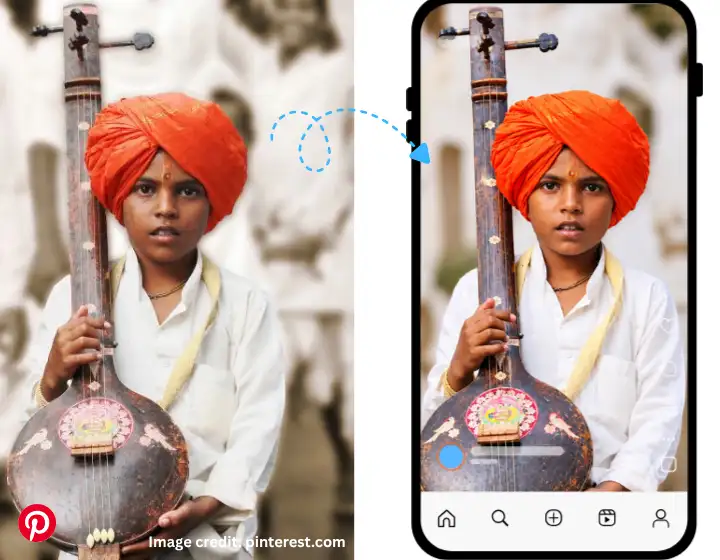
Enhance the uploaded photograph into a professional DSLR-quality image. Improve overall image clarity, sharpness, exposure, contrast, and colour balance. Add natural professional lighting, realistic skin texture, detailed facial features, and a beautiful shallow depth of field. Preserve the original person's facial identity with absolute accuracy — keep the exact facial structure, bone proportions, eye shape, nose shape, lip shape, jawline, skin tone, hairstyle, clothing, pose, expression, and background completely unchanged. Do not alter, reshape, or beautify any facial feature. Make the final image look like it was captured using a professional full-frame DSLR camera during a modern photo shoot, then professionally retouched in Photoshop with a premium cinematic LUT preset applied — rich colour grading, balanced shadows and highlights, smooth tonal transitions, and true-to-life skin tones. Avoid artificial skin smoothing, excessive sharpening, plastic-looking skin, and unrealistic facial changes. The result must look like a genuine, naturally captured professional photograph with a flawless Photoshop LUT finish.2. 4K Ultra HD Photo Enhancement Prompt
If your photograph looks blurry or lacks fine details, this prompt can help improve its visual quality.
This prompt keeps a sharp and high-resolution appearance.
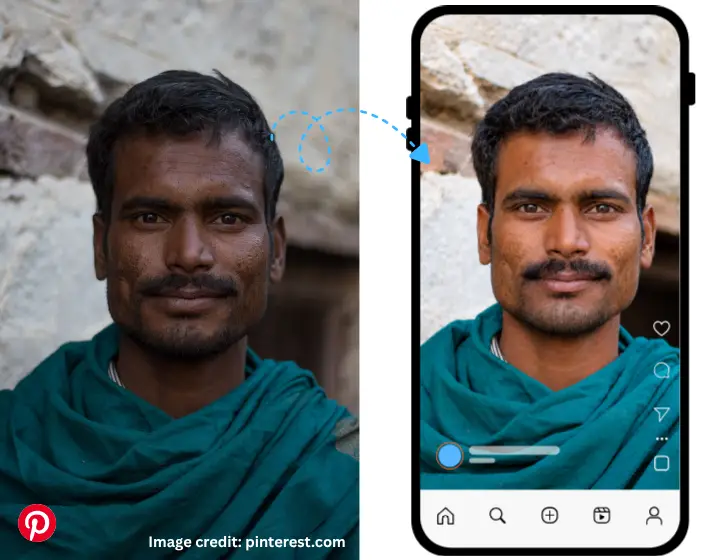
Enhance the uploaded photograph with true ultra-high-definition 4K-quality detail. Improve image resolution, sharpness, clarity, fine textures, and overall visual quality. Recover and refine natural facial details, individual hair strands, clothing textures, fabric weave, and background elements without changing the original composition. Preserve the exact facial identity with absolute accuracy — keep the facial structure, bone proportions, eye shape, nose shape, lip shape, jawline, skin tone, hairstyle, clothing, pose, expression, and background completely unchanged. Maintain realistic colours, balanced lighting, natural skin pores, and professional photographic quality. Avoid fake or invented details, oversharpening, halo artifacts, plastic-looking skin, and unrealistic facial changes. The final image must look like a genuine 4K photograph captured with a high-resolution full-frame camera — crisp, natural, and free of any AI-generated artifacts.3. Natural Skin Texture and Face Enhancement Prompt
This prompt is useful when you want to improve skin appearance without making the face look artificial.
You can remove the artificial or overly edited look by using this prompt.
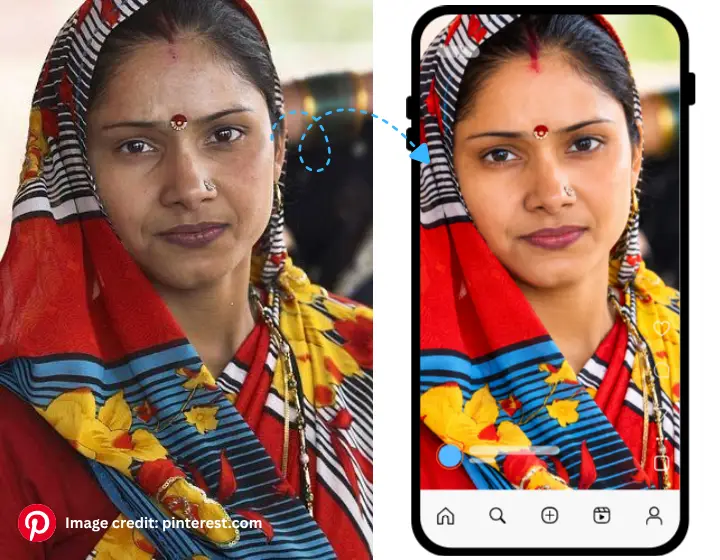
Professionally retouch the uploaded portrait while maintaining completely natural, realistic skin texture. Reduce minor blemishes, uneven skin tone, redness, and temporary imperfections without erasing the skin's natural character. Improve facial clarity, natural complexion, and subtle highlights while keeping visible pores, fine skin details, facial hair, and natural imperfections intact. Preserve the exact facial identity with absolute accuracy — keep the facial structure, bone proportions, eye shape, nose shape, lip shape, jawline, skin tone, hairstyle, and expression completely unchanged. Do not apply excessive beauty filters, skin smoothing, whitening, or plastic-looking effects. Avoid over-blurring, waxy skin, and unrealistic facial changes. The final photograph should look like a naturally retouched professional portrait, as if edited by an expert retoucher in Photoshop using frequency separation — clean yet authentically human.4. Blurry Photo Enhancement and Sharpening Prompt
Your ordinary image can be converted into a cinematic look if you use this prompt.
You can add dramatic visual effects in the final results with proper colour grading on images.
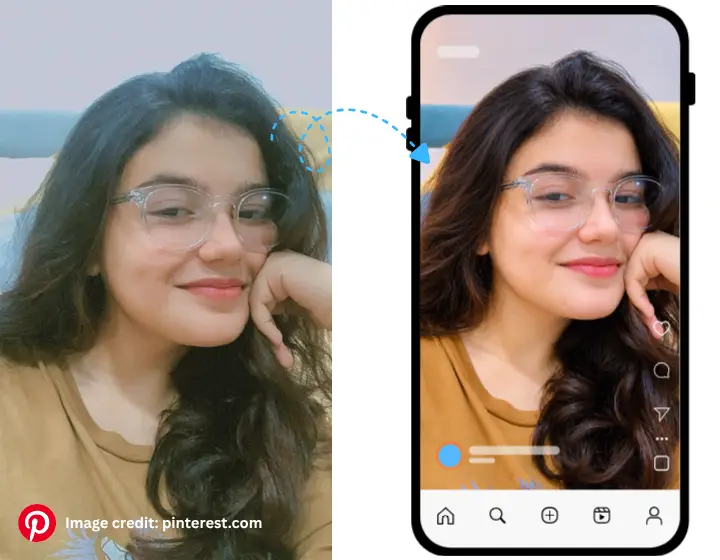
Transform the uploaded blurry or soft photograph into a sharp, clear, cinematic professional photograph. Recover visible details, improve focus clarity, and restore fine textures in the face, hair, clothing, and background. Apply beautiful cinematic lighting, balanced shadows, subtle highlights, rich contrast, and professional movie-style colour grading with a premium LUT finish. Create realistic depth, atmospheric lighting, and a visually appealing background while maintaining the original composition. Apply careful sharpening only where needed, without introducing halos, grain, or artifacts. Preserve the exact facial identity with absolute accuracy — keep the facial structure, bone proportions, eye shape, nose shape, lip shape, jawline, skin tone, hairstyle, clothing, pose, expression, and background completely unchanged. Do not invent details that were not present in the original image. Add realistic skin texture and natural details without altering the person's appearance. Avoid oversharpening, plastic-looking skin, artificial AI-generated looks, and unrealistic facial changes. The final result should look like a crisp, professionally captured cinematic film frame — sharp, naturally focused, and free of any AI artifacts.5. Professional Portrait Enhancement Prompt
If your original photo has poor lighting, then try this prompt to create a professional studio-style appearance with balanced illumination.
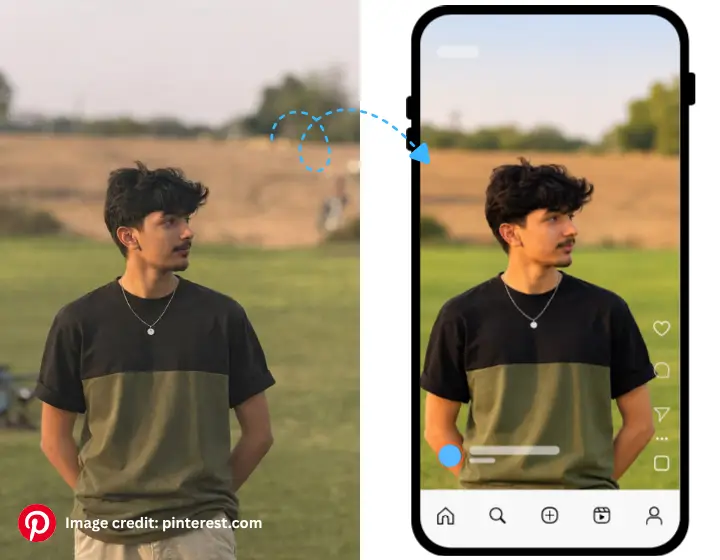
Transform the uploaded photograph into a professional, magazine-quality portrait. Apply soft, flattering studio lighting with balanced shadows, subtle highlights, and natural skin tones. Enhance facial clarity, eye detail, and natural complexion while keeping visible pores, fine skin texture, and realistic imperfections intact. Create smooth tonal transitions, gentle contrast, and a clean, elegant background with a beautiful shallow depth of field, while maintaining the original composition. Preserve the exact facial identity with absolute accuracy — keep the facial structure, bone proportions, eye shape, nose shape, lip shape, jawline, skin tone, hairstyle, clothing, pose, expression, and background completely unchanged. Do not apply excessive beauty filters, skin smoothing, or facial reshaping. Avoid plastic-looking skin, oversharpening, and unrealistic facial changes. The final portrait should look like it was captured by a professional portrait photographer in a studio and carefully retouched in Photoshop — polished yet completely natural and authentically human.6. Cinematic Photo Enhancement Prompt
This prompt is helpful for photographs that appear slightly blurry, soft, or out of focus.
It attempts to improve visible details without changing the original subject.
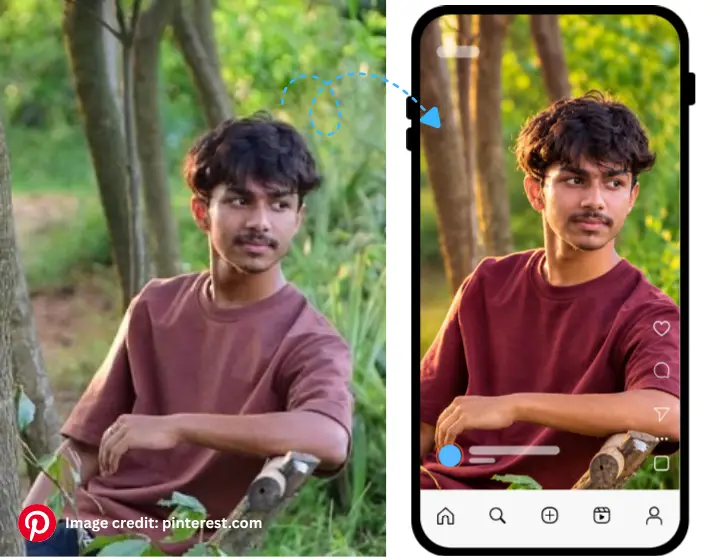
Transform the uploaded photograph into a cinematic, movie-quality image. Apply beautiful cinematic lighting with balanced shadows, subtle highlights, rich contrast, and professional movie-style colour grading with a premium LUT finish. Create realistic depth, atmospheric lighting, a gentle haze, and a visually appealing background while maintaining the original composition. Enhance sharpness and clarity, and carefully reduce visible blur, image noise, and unwanted softness without introducing halos or artifacts. Restore realistic details in the eyes, hair, facial features, clothing, and other visible objects. Preserve the exact facial identity with absolute accuracy — keep the facial structure, bone proportions, eye shape, nose shape, lip shape, jawline, skin tone, hairstyle, clothing, pose, and expression completely unchanged. Keep the enhancement natural and avoid inventing details that are not visible in the original image. Avoid plastic-looking skin, oversharpening, and unrealistic facial changes. The final result should look like a frame from a professionally captured cinematic film, not an artificial AI-generated image.7. Natural Lighting and Colour Correction Prompt
This prompt is ideal for profile pictures, or professional photographs.
Even you can use this prompt for business portraits, and social media display pictures.
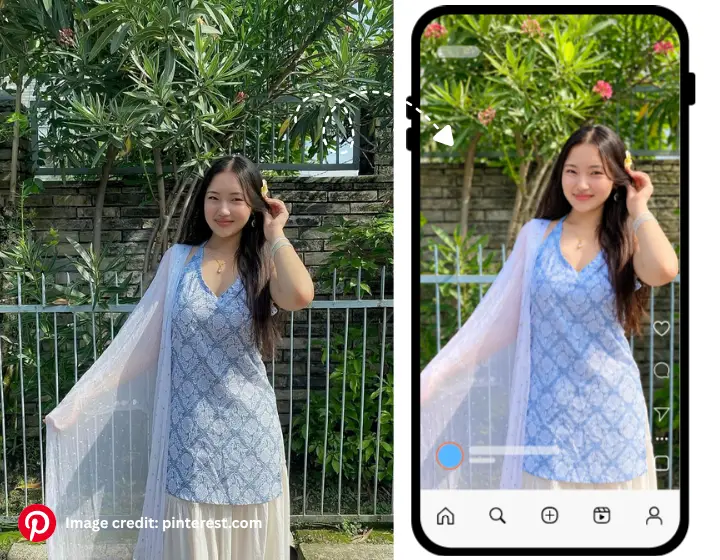
Convert the uploaded photograph into a high-quality professional image with natural, true-to-life lighting and accurate colour correction. Balance exposure, white balance, shadows, highlights, and colour temperature so the lighting looks soft, even, and naturally captured rather than artificially lit. Correct colour casts and uneven tones while keeping skin tones realistic and healthy. Improve facial clarity, overall composition, and fine details with natural skin texture, visible pores, and realistic features intact. Create a refined professional photography appearance with subtle background depth. Preserve the exact facial identity with absolute accuracy — keep the facial structure, bone proportions, eye shape, nose shape, lip shape, jawline, skin tone, hairstyle, clothing, pose, and expression completely unchanged. Do not change the person's age or physical appearance. Avoid unnatural colour saturation, HDR effects, overexposed highlights, plastic-looking skin, and unrealistic facial changes. Make the final image suitable for a professional profile or portfolio.8. Low-Quality Photo to HD Enhancement Prompt
A beautiful blurred background can make an ordinary portrait into a DSLR-style portrait.
This prompt shows the picture is captured using an expensive camera lens.
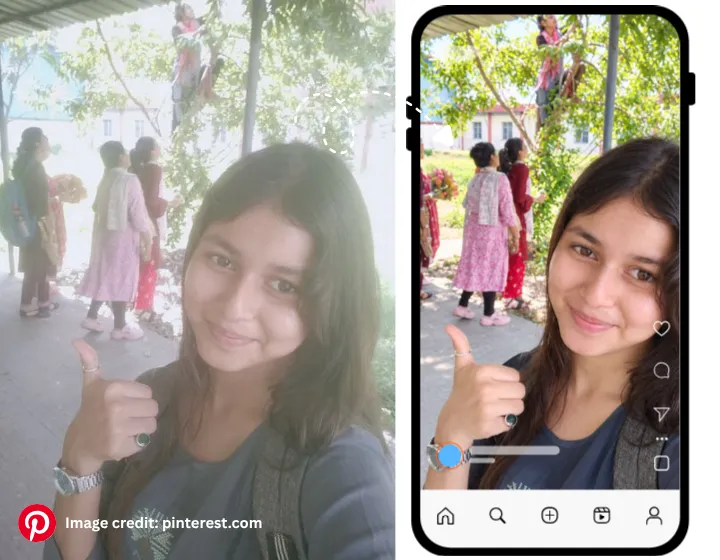
Transform the uploaded low-quality or low-resolution photograph into a clean, sharp, high-definition (HD) image. Improve overall resolution, clarity, sharpness, and fine detail. Recover visible textures in the face, hair, clothing, and background, and reduce noise, compression artifacts, pixelation, and JPEG blockiness. Correct exposure, contrast, colour balance, and lighting so the image looks clean and naturally captured. Preserve the exact facial identity with absolute accuracy — keep the facial structure, bone proportions, eye shape, nose shape, lip shape, jawline, skin tone, hairstyle, clothing, pose, expression, and background completely unchanged. Keep the enhancement natural and do not invent details that were not visible in the original image. Avoid oversharpening, halo artifacts, plastic-looking skin, and unrealistic facial changes. The final result should look like a genuine HD photograph — clean, sharp, and realistic, not an artificially processed AI image.9. Professional Studio Photography Enhancement Prompt
If you have captured a photograph in a dark environment, this prompt can help improve brightness and visibility.
This is a perfect prompt for maintaining a natural night-time atmosphere.
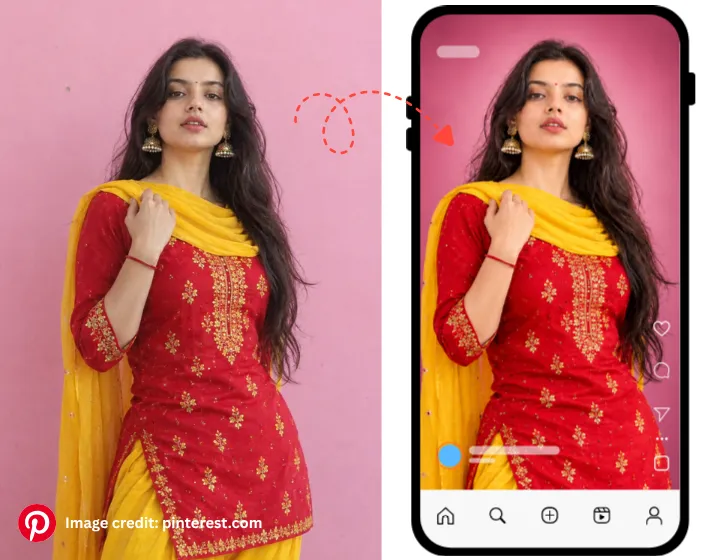
Transform the uploaded photograph into a professional studio-quality portrait. Apply clean, controlled studio lighting with soft key light, gentle fill light, subtle rim light, and balanced shadows to create depth and separation from the background. Improve facial clarity, exposure, contrast, and colour accuracy with natural skin tones, visible pores, and realistic skin texture. Create a smooth, seamless studio backdrop with a clean gradient and a professional, elegant look. Preserve the exact facial identity with absolute accuracy — keep the facial structure, bone proportions, eye shape, nose shape, lip shape, jawline, skin tone, hairstyle, clothing, pose, expression, and background completely unchanged. Keep the enhancement natural and realistic. Avoid harsh shadows, flat lighting, plastic-looking skin, oversharpening, and unrealistic facial changes. The final image should look like it was captured in a professional photography studio with high-end lighting equipment and carefully retouched in Photoshop — polished, balanced, and authentically human.10. Background Blur and DSLR Bokeh Enhancement Prompt
If you have old photographs that often contain scratches or fading out, some images may have extra noise and discolouration; this prompt can enhance the quality of these types of images.
This prompt can help restore their appearance while preserving the original memories.
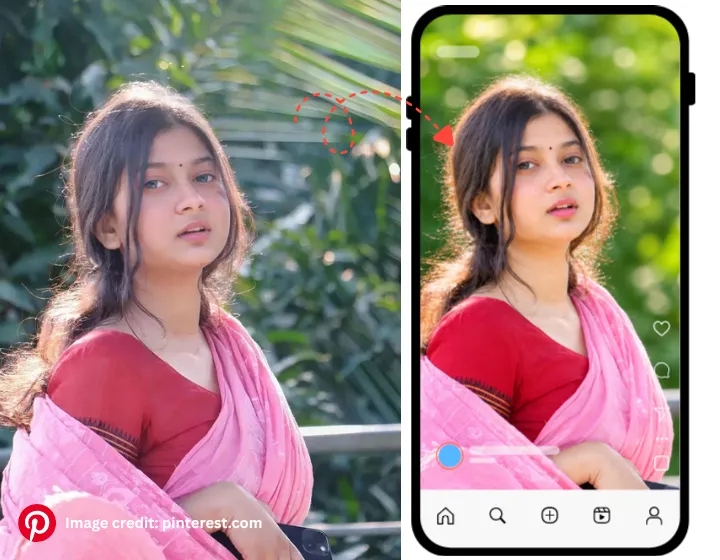
Enhance the uploaded portrait with a professional DSLR-style background blur and beautiful natural bokeh. Keep the main subject perfectly sharp and detailed while creating a soft, creamy background blur with realistic bokeh circles and smooth tonal falloff. Ensure realistic subject separation and natural depth of field, as if captured with a fast prime lens at a wide aperture. Improve lighting, facial clarity, natural skin texture, and colour balance. Preserve the exact facial identity with absolute accuracy — keep the facial structure, bone proportions, eye shape, nose shape, lip shape, jawline, skin tone, hairstyle, clothing, pose, expression, and original composition completely unchanged. Keep the subject's edges clean and natural, with no blur bleeding into the face or hair. Avoid artificial-looking blur, cut-out edges, fake bokeh patterns, and unrealistic facial changes. The final image should look like a genuine shallow-depth-of-field DSLR portrait, not a digitally blurred background.11. Natural Colour Correction and Enhancement Prompt
This is a Natural Colour Correction and Enhancement Prompt, and it can give you an aesthetic DSLR-style visual without any conditions or terms and conditions.
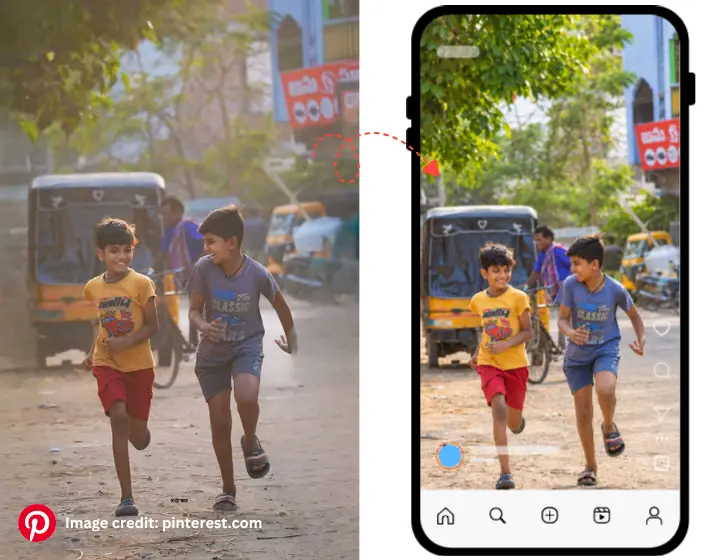
Improve the colour grading of the uploaded photograph using professional photography techniques. Correct white balance, exposure, highlights, shadows, contrast, black levels, and colour temperature so the image looks naturally balanced and true to life. Neutralise colour casts from mixed or artificial lighting while keeping skin tones realistic, healthy, and accurate. Enhance natural colours and environmental tones without over-saturating them. Preserve the exact facial identity with absolute accuracy — keep the facial structure, bone proportions, eye shape, nose shape, lip shape, jawline, skin tone, hairstyle, clothing, pose, background, and composition completely unchanged. Avoid excessive saturation, unnatural colour shifts, artificial filters, HDR effects, and clipped highlights or crushed shadows. The final image should look like a balanced, visually appealing professional photograph with authentic, natural colour grading.12. Wedding Photography Enhancement Prompt
Nowadays, wedding AI photos, invitation cards, and videos are trending on the internet.
People love to share wedding AI videos rather than sending a physical wedding invitation card.
Try these Wedding Photography Enhancement Prompts for a luxury wedding image.
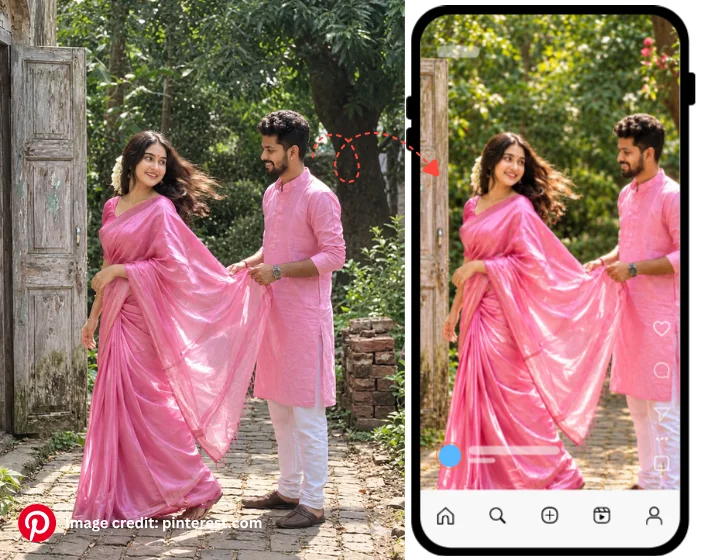
Enhance the uploaded wedding photograph into an ultra-realistic premium professional wedding photography image. Improve lighting, skin tones, exposure, contrast, fine details, and fabric textures. Add elegant cinematic colour grading, soft highlights, gentle warm tones, natural depth of field, and beautiful realistic lighting that flatters both subjects. Render fabric with true-to-life realism — where present, the fabric has an ultra-glossy, liquid-like satin sheen that strongly reflects the light, creating brilliant, blazing specular highlights and deep, rich shadows across the folds, with intricate, clearly defined weave and thread detail. Enhance the sparkle of jewellery, the texture of wedding outfits, and the detail of background decorations while keeping everything authentic to the original scene. Preserve the exact facial identities of both people with absolute accuracy — keep their facial structure, bone proportions, eye shape, nose shape, lip shape, jawline, skin tone, hairstyle, expressions, poses, wedding outfits, jewellery, and background decorations completely unchanged. Do not modify their clothing, facial features, or body proportions. Avoid oversaturated colours, plastic-looking skin, waxy or airbrushed faces, unrealistic facial changes, and artificial AI-generated effects. The final photograph should look like an ultra-realistic image captured by a professional wedding photographer and carefully retouched in Photoshop — elegant, romantic, photographically authentic, and indistinguishable from a real photograph.13. Professional Outdoor Photography Enhancement Prompt
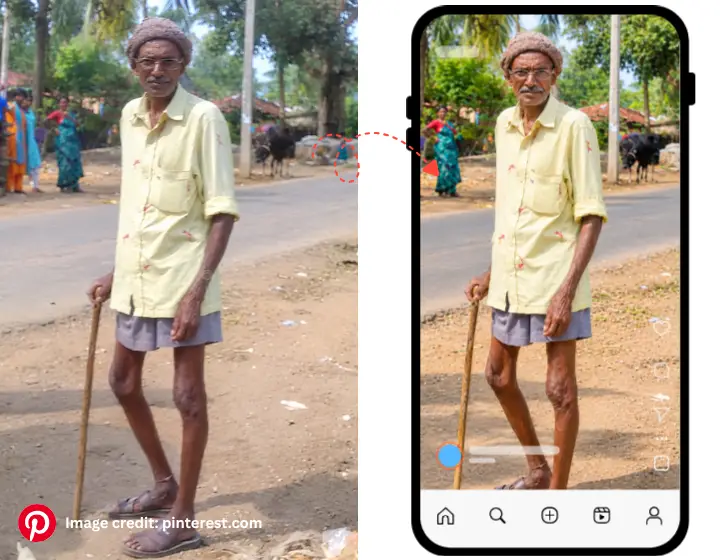
Enhance the uploaded outdoor photograph with professional natural-light photography quality. Improve exposure, brightness, contrast, colour balance, and environmental details. Add soft natural sunlight, realistic shadows, balanced highlights, and beautiful atmospheric depth without changing the original location or background. Render the environment with true-to-life realism — natural sky tones, accurate foliage greens, realistic textures in the ground, rocks, water, and architecture, and believable light falloff across the scene. Recover detail in both bright and shadow areas so nothing looks blown out or crushed. Maintain natural skin texture, visible pores, and realistic colours. Preserve the exact facial identity with absolute accuracy — keep the facial structure, bone proportions, eye shape, nose shape, lip shape, jawline, skin tone, hairstyle, clothing, pose, expression, and background completely unchanged. Avoid oversaturated colours, HDR effects, unnatural colour shifts, plastic-looking skin, oversharpening, and unrealistic facial changes. The final photograph should look like an ultra-realistic outdoor DSLR image captured by a professional photographer in natural light — vibrant yet true to life, and indistinguishable from a real photograph.14. Professional Fashion Photography Enhancement Prompt
If you understand the above points related to prompt writing , you can easily make Fashion photography using ai prompt.
The benefit of the prompt is that it can take 10–12 seconds to generate your visuals and never demotivates you with the result.
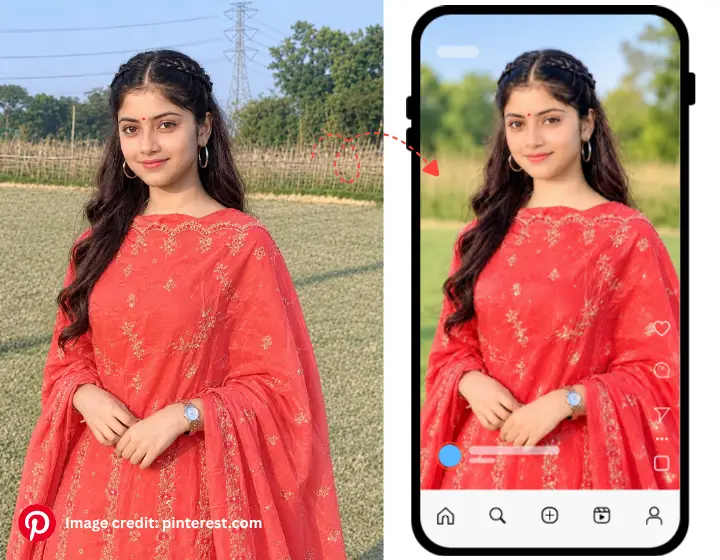
Transform the uploaded photograph into a premium professional fashion photography image. Apply editorial-quality lighting with soft key light, gentle fill, and subtle rim light to sculpt the subject and create separation from the background. Enhance sharpness, exposure, contrast, colour grading, and fine fabric textures. Render clothing with true-to-life realism — accurate fabric drape, weave, stitching, and material sheen — so garments look premium and tactile. Improve natural skin tones, visible pores, and realistic skin texture, with balanced highlights and realistic background depth. Preserve the exact facial identity with absolute accuracy — keep the facial structure, bone proportions, eye shape, nose shape, lip shape, jawline, skin tone, hairstyle, clothing, pose, expression, and composition completely unchanged. Maintain the original aspect ratio and composition. Avoid excessive filters, artificial skin smoothing, plastic-looking skin, oversharpening, and unnecessary visual changes. The final image should look like an ultra-realistic editorial fashion photograph shot for a premium magazine — polished, stylish, and indistinguishable from a real photograph.15. Realistic 8K Photo Remastering Prompt
Realistic image generation does not need any expensive mobile apps because AI has taken the lead to do that in a few seconds.
The more clear details you add to your prompts, the better visuals your result gets.
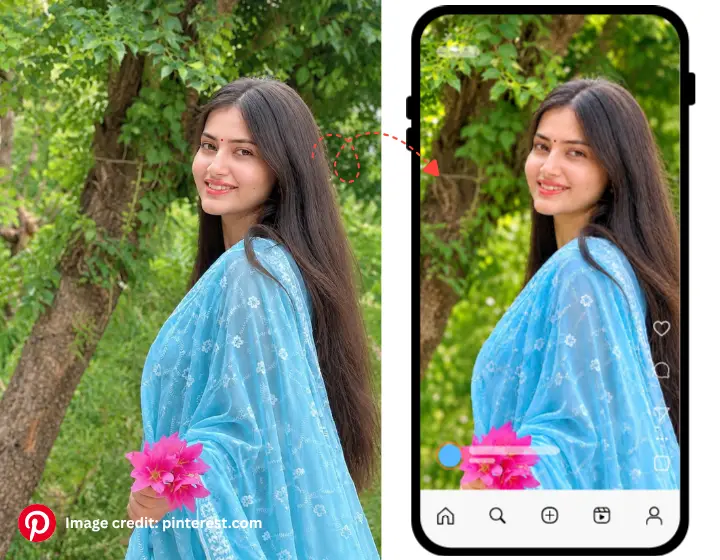
Remaster the uploaded photograph into an ultra-realistic 8K-quality image with true photographic detail. Recover and enhance resolution, clarity, sharpness, micro-textures, and fine detail across the face, hair, clothing, and background. Render skin with visible pores, fine facial hair, natural imperfections, and realistic light interaction. Render hair strand-by-strand, and fabrics with accurate weave and material sheen. Improve lighting, exposure, contrast, dynamic range, and colour grading so the image looks like it was captured using an 85mm portrait lens at f/1.4 aperture, with beautiful optical background compression, creamy natural bokeh, and realistic shallow depth of field. Preserve the exact original facial identity with absolute accuracy — keep the facial structure, bone proportions, eye shape, nose shape, lip shape, jawline, skin tone, hairstyle, clothing, pose, expression, and composition completely unchanged. Do not invent facial features, fake textures, or details that were not present in the original image. Avoid oversharpening, halo artifacts, plastic-looking skin, unrealistic skin, and artificial AI-generated effects. The final image should look like an ultra-realistic 8K remastered photograph, indistinguishable from a real high-resolution camera capture.How to Enhance Photos Using Gemini AI
When you need to enhance the uploaded photograph into an ultra-realistic and professional-quality DSLR photograph, you must improve overall image resolution, sharpness, and exposure.
Your result must include contrast, colour balance, and fine details.
A good prompt can easily apply professional photography lighting with natural highlights.
These 15 are capable of balanced shadows, realistic skin texture, and beautiful depth of field.
There is no doubt that these prompts can improve facial clarity, hair details, clothing textures, and background quality.
All these prompts are ready to maintain a natural photographic appearance.
Let’s have a try with these prompts and get professional colour grading and realistic camera-like details.
Remember, do not introduce unnecessary objects or modify the background details in your prompt. Also, you need to avoid plastic-looking skin and artificial beauty filters.
The final result should look like a naturally captured professional DSLR photograph with premium image quality.
Best Gemini Prompt for Professional Photo Enhancement
You need to upload the image as the exact visual reference and enhance it into an ultra-realistic professional DSLR photograph.
Add the details of clarity, resolution, sharpness, dynamic range, exposure, contrast, and colour accuracy in a prompt.
Here is another prompt for the best Gemini Prompt for Professional Photo Enhancement:
Transform the uploaded photograph into an ultra-realistic, professional-quality image with true photographic detail. Analyse the original image and enhance only what it genuinely needs — improve resolution, clarity, sharpness, exposure, contrast, dynamic range, white balance, and colour accuracy while keeping the scene authentic. Apply professional lighting suited to the photo's existing environment (natural, studio, outdoor, golden hour, low-light, or cinematic), with balanced shadows, realistic highlights, and believable light falloff. Render skin with visible pores, natural texture, fine facial hair, and realistic imperfections. Render hair strand-by-strand, fabrics with accurate weave, drape, stitching, and material sheen, and backgrounds with realistic depth and texture. Preserve the exact facial identity with absolute accuracy — keep the facial structure, bone proportions, eye shape, nose shape, lip shape, jawline, skin tone, hairstyle, clothing, pose, expression, body proportions, background, and composition completely unchanged. Maintain the original aspect ratio, framing, and location. Do not invent details, textures, objects, or facial features that were not present in the original image. Avoid plastic-looking skin, waxy or airbrushed faces, oversharpening, halo artifacts, HDR effects, oversaturated colours, unnatural colour shifts, artificial filters, and unrealistic facial changes. The final image must look like a genuine, naturally captured professional photograph — crisp, balanced, photorealistic, and indistinguishable from a real camera capture.The final photograph should look like an authentic professional DSLR image edited by an experienced photographer using Lightroom and Photoshop.
Gemini Prompt to Enhance Photos Without Changing Your Face
Create a highly realistic, professionally enhanced portrait using the uploaded photograph as the exact reference.
If you want the result to have accurate facial features of the reference image,
you must improve the overall portrait quality with natural professional lighting and the following elements of visuals:
- balanced exposure,
- accurate skin tones,
- realistic facial details, and
- subtle cinematic colour grading.
Also, your prompt must give attention to enhancing the eyes, eyebrows, hair strands, and natural skin texture, but ensure the original facial structure and identity remain the same.
An expert prompt writer can add and maintain visible skin pores and fine facial details, including realistic natural imperfections.
The final result should look like a natural and high-end professional portrait.
Try the above prompt for a full-frame DSLR camera and carefully retouched by a professional photographer.
A natural Professional DSLR Photo Quality with Natural Skin Texture is waiting for you.
Common Mistakes to Avoid When Using AI Photo Editing Prompts
If you are new to image generating, you must follow some guides for writing your prompts.
There are many AI image-making tools, and you can give instructions in the form of prompts.
Ensure that your prompt keeps the same facial features of reference images.
This is true that changing Facial Identity is a common issue in AI image generation.
This happens because users do not add the instructions for facial features in their text prompts.
Apart from that, since these prompts are related to image enhancement, you must ensure no excessive sharpening and skin smoothing.
A good prompt ignores Original Image Resolution and upscales it to 4K or 8K resolutions.
FAQs
What is the best AI prompt for photo enhancement?
Photo enhancement prompts provide instructions to AI tools to improve sharpness, lighting, colours, facial details and image clarity.
Which AI is best for enhancing photo quality?
Google Gemini and ChatGPT are popular options. Results depend on the original image and the features available in each tool.
How do I enhance a photo without changing my face?
You can ask the AI to preserve original facial identity, proportions, eyes, nose, lips, hairstyle and expression while improving image quality.
Can AI prompts convert low-quality photos into 4K?
AI tools can upscale images and generate additional visual details, but cannot guarantee recovery of information absent from the original.
Are Gemini photo enhancement prompts free?
You can try available features with Gemini’s free plan, subject to current usage limits and feature availability.
Can ChatGPT enhance an uploaded photograph?
Yes. ChatGPT supports image-related capabilities, including image editing through supported image-generation features.
How do I make my photo look like a professional DSLR image?
Use instructions for realistic DSLR-style photography, balanced exposure, natural skin texture, professional lighting and subtle background blur.
Why does AI sometimes change facial features?
AI may reinterpret facial details when instructions are broad or substantial changes are requested. Explicitly request identity preservation.
Conclusion
AI photo enhancement prompts make it easier to transform ordinary photographs into professional-looking images without advanced photo editing skills.
A good prompt can easily improve image quality and create a realistic DSLR effect, including enhancing portrait details.
Let’s give your pictures a cinematic appearance with the right prompt.
If you want to achieve better results, compare the results of each prompt as much as possible and add more customized text to your old prompt.
Once your prompt is updated, go with Google Gemini or ChatGPT and other compatible AI photo editing tools to test it again.
Always check that the final result maintains your natural facial features and original appearance.
If you found these prompts helpful, share this article with your friends and photography enthusiasts!