Professional dslr lightroom edit prompt
By Welcome to photo editing prompts! Generate your own masterpiece · Updated October 23, 2026
Prompt
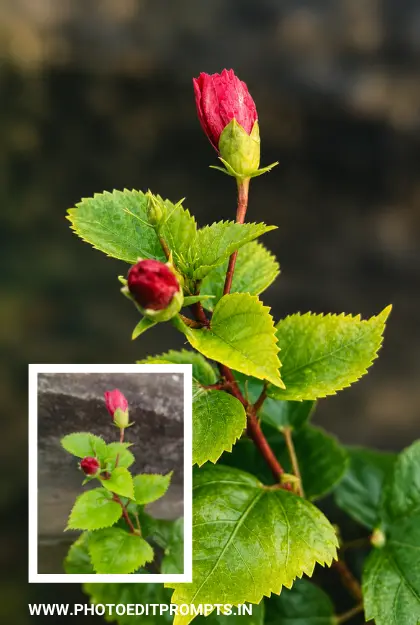
ROLE: Act as an internationally award-winning nature and macro photographer with 10+ years of professional DSLR shooting and Adobe Lightroom post-processing experience. The input is a single photograph taken with an ordinary mobile phone. Professionally edit this exact photograph so that it looks as if it had been captured with a full-frame DSLR or mirrorless camera and a premium 85–90mm macro or portrait lens, then graded in Lightroom. This is faithful photographic post-processing, not image regeneration, replacement or reinterpretation. 1. PRESERVE THE ORIGINAL (HIGHEST PRIORITY)
– Keep every subject, leaf, branch, stem, flower, bud, fruit, seed pod, insect, rock and object exactly where it is in the input image, with the same shapes, counts, proportions, orientation, framing, camera angle, perspective and aspect ratio.
– Do not add, remove, duplicate, reshape, relocate, reconstruct or invent anything. Preserve fine details such as thin stems, leaf tips, narrow branches, hairs, filaments, veins and overlapping foliage, and anything at the frame edges.
– If an element is soft or partly hidden in the input, keep it as it is, and do not invent missing detail.
– Keep the true colours of non-green subjects (flowers, fruit, bark, stems, insects, soil). Do not tint them to match the background.
– If a style choice conflicts with preservation, preservation wins. 2. DSLR OPTICAL LOOK
– Realistic full-frame camera rendering: crisp natural edges, strong micro-contrast, fine texture and veins, lifelike detail, and a clean, low-noise image that keeps natural texture.
– Remove the typical mobile-phone look: over-sharpening, noise reduction smearing, flat HDR processing, washed-out contrast and a digital look.
– Keep the main subject as the clear, sharp focal point and keep the original focus plane. 3. COLOUR GRADING (target look)
– A moody, premium, cinematic nature-photography grade: rich but realistic greens, deep emerald and teal-green shadows that keep detail, warm golden-green highlights on naturally lit edges, slightly deeper blacks without crushing, and smooth tonal transitions.
– Warm highlights against cooler, darker background tones for subject separation, with correct white balance and natural colour separation.
– Adapt the grade to the scene: keep it natural for non-green subjects, and avoid a uniform teal tint over the whole image. No HDR look, no over-saturation. 4. BACKGROUND AND BOKEH
– Turn the background into a soft, dark, creamy, optical-looking bokeh, like f/1.8–f/2.8 on a macro or portrait lens: smooth rounded blur, gradual transitions, a quiet backdrop in the same colours as the original, so that the subject stands out.
– Use depth-aware masking. Never let the blur cut through the subject, thin stems, leaf tips, hairs or overlapping foliage, and never blur parts of the subject that sit on the focal plane.
– Subtly darken the background only where the original light supports it. Do not replace the background or add new objects, light circles, fog, dew, water drops, sun rays or floating particles. 5. LIGHT AND DIMENSION
– Enhance the existing light direction with soft directional light, gentle highlights, deep but detailed shadows and natural three-dimensional depth, using local contrast. No artificial rim light, glow or spotlight. 6. DETAIL AND QUALITY
– Apply careful, restrained sharpening, clarity and dehaze only to real detail. No sharpening halos, crunchy textures, plastic smoothness, posterisation or banding.
– Keep the original resolution and aspect ratio. No crop and no stretch. Use only faithful, texture-preserving upscaling if needed, and never invent detail. 7. FINAL CHECK
Compare with the input and confirm that every subject, branch, stem, flower and detail is still there, nothing is duplicated, replaced or moved, the frame edges contain the same content, and no new objects have appeared. OBJECTIVE: The exact same scene as the input photo, expertly processed to look like a premium DSLR nature photograph: deep cinematic colour grading, creamy bokeh, natural subject separation, rich detail and a professional Lightroom finish, with no change to the real content. BACKGROUND HUE: Keep the background in the same colour family as the original (for example, a grey stone wall stays grey-brown and is only darkened and softened). Do not recolour it to green or teal. DETAIL: Enhance only the detail that already exists in the photo. If a region is soft or out of focus, keep it soft and natural. Do not draw new veins, serrations or textures. FRAME: Output exactly the same framing, crop and pixel dimensions as the input. Do not zoom or shift the subject. WATER DROPLETS: Keep the original water droplets and wet sheen on the leaves as droplets, and do not smooth them into a flat gloss.
Negative prompt
missing elements, deleted leaves, deleted stems, deleted details, invented foliage or objects, duplicated elements, replaced subject, altered species, redesigned shapes, rearranged composition, hallucinated detail, AI reconstruction, background replacement, excessive blur on the subject, blur halos, cutout edges, oversaturated colours, uniform teal tint, tinted flowers or fruit, HDR look, crushed shadows, clipped highlights, plastic texture, painterly or illustration style, CGI, 3D render, excessive clarity, sharpening halos, artificial glow, fake sun rays, dew, water droplets, particles, text, logo, watermark, crop, stretch, aspect-ratio change, loss of quality.
Hashtags
- Platform
- ChatGPT, Ideogram, Kling, Leonardo, Midjourney
- Occasion
- Natural Photography
- Aspect ratio
- 9:16 (1080×1920)
- Quality
- 1080p, 4K
- Prompt type
- Direct prompt
You may also read
More articles →- Action Picture Generate Prompts
31+ Maa Kali Photo HD Wallpaper Download: Best ChatGPT Prompts
- AI Cineatic 8K Video Prompt
5 Trending Dussehra 2026 Image AI Prompts
- AI Mobile Wallpapers Free
15 Diwali Girl Ai Prompt Photo Editing Free
- AI Cineatic 8K Video Prompt
Best Wedding Invitation Poster Design Prompts: Easy Copy-Paste Luxury Wedding AI Prompts
How to use this prompt
- Press Copy prompt to copy the full prompt.
- Open ChatGPT and start a new image.
- Paste the prompt and set the aspect ratio to 9:16 (1080×1920).
- Add the negative prompt in the negative prompt field, if your tool has one.
- Generate, then adjust a few words to make it your own.
More prompts like this
Durga puja video prompt free download (opens in a new tab)
photoeditprompts.in
Doodle shadow couple image prompt (opens in a new tab)
photoeditprompts.in
Happy birthday wishes images prompt (opens in a new tab)
Welcome to photo editing prompts! Generate your own masterpiece
Wedding poster design ai prompt (opens in a new tab)
Welcome to photo editing prompts! Generate your own masterpiece
8K studio portrait for woman (opens in a new tab)
Welcome to photo editing prompts! Generate your own masterpiece
Laxmi Puja Cinematic Girl Image Prompt (opens in a new tab)
Welcome to photo editing prompts! Generate your own masterpiece