How to Blend Two Images Using Google Gemini Prompt
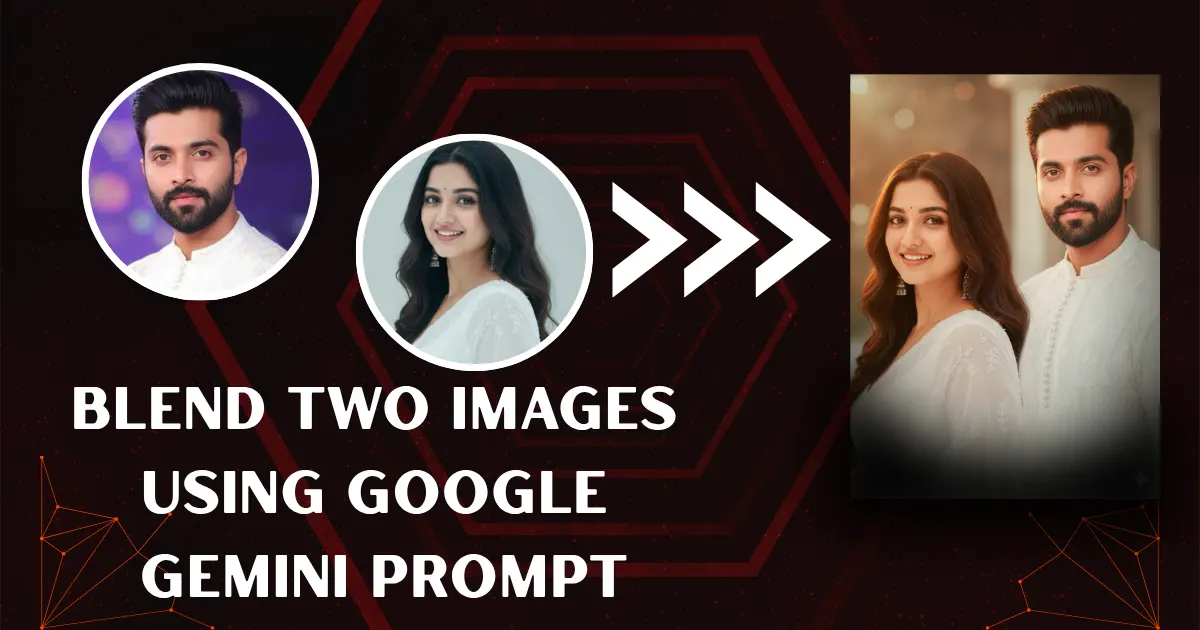
You don’t need Photoshop to make two photos look like one cinematic masterpiece anymore.
Have you ever wished you could take two completely different photos and make them look like one perfect moment?
In this era of AI image editing, you can bring back these blend two images using a Google Gemini Prompt within a few seconds.
You no need to learn Photoshop or forget layer masks, because the Gemini does it all in seconds with zero cost.
You simply upload two reference photos, use the prompt shared in this blog and get the masterpiece.
With Google Gemini, blending images is now as simple as typing a sentence — literally.
82% of creators now use AI prompts to enhance or merge visuals — and you’re about to see why.
Lets dive into the guide shows you exactly how to Blend Two Images Using a Google Gemini Prompt that looks studio-shot.
Step by Step Blend Two Images Using a Google Gemini Prompt
You can follow these simple steps to convert your two images into one beautifully blended visual.
Creators using AI-assisted visuals report 60% higher engagement rates on their visual content.
Why waste time on manual edits when AI can blend your two images perfectly — in just one step?
- Go to the Gemini AI website.
- Log in with your Gmail ID.
- Open a new tab and visit www.photoeditprompts.in.
- Click on the search box and type “blend.”
- Open the first link and scroll down slowly.
- Copy the prompt from that page.
- Go back to the Gemini website and paste the prompt into the prompt area.
- Click the + icon and upload the two images you want to blend.
- Press Ctrl + Enter or tap the Run button.
Within seconds, the Nano Banana Google Gemini Prompts will create stunning, retro-style, blended cinematic visuals.
Prompts for Blend Two Images Using Google Gemini
Every photo tells a story — but two blended together can tell a masterpiece.
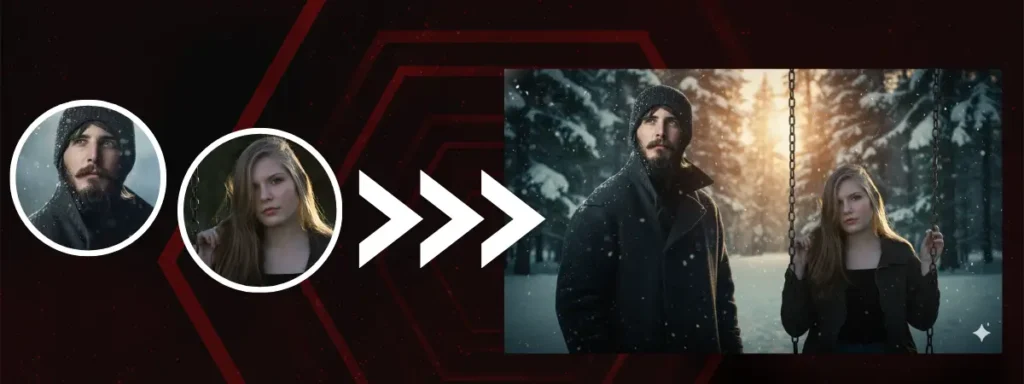
Blend these two images into a single cinematic 8K scene with a newly generated realistic background that unifies both subjects naturally. Match lighting, perspective, and depth so they appear photographed together. Create a soft golden or moody ambient light with realistic shadows and lens depth. Design a background that fits both subjects — like a scenic outdoor, cozy indoor, or dreamy cinematic space — blending tones smoothly. Apply film-style color grading with warm highlights, rich midtones, and cool shadows for balance. Maintain skin tones, textures, and details with lifelike realism. Add gentle atmospheric haze, background blur, and subtle glow to achieve a cohesive, storytelling, cinematic composition.
AI image blending speeds up creative workflows by over 70%, freeing more time for storytelling.
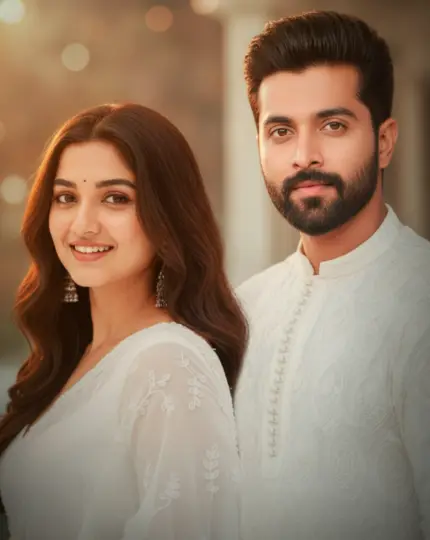
Blend these two images into one seamless cinematic composition in 8K ultra-realistic quality. Combine both subjects naturally, matching lighting, shadows, and perspective. Use soft, golden-hour light with warm highlights and rich contrast for a film-like tone. Maintain accurate skin tones, sharp details, and realistic depth of field. Ensure the background merges smoothly with no visible edges or distortion. Apply cinematic color grading — warm amber and orange in highlights, deep teal and brown in shadows, and slightly desaturated midtones. Add gentle atmospheric haze, soft bokeh, and subtle vignette for emotional depth. The final image should look like a professional movie still — immersive, natural, and storytelling — as if both photos were taken together in one flawless cinematic frame.
This guide shows you exactly how to Blend Two Images Using a Google Gemini Prompt that looks studio-shot.
Conclusion
This blog makes it easy and modern to Blend Two Images Using Google Gemini Prompt without any advanced editing skills.
This blog provides the right instructions and helps Gemini align the lighting and tone in your photos.
Enjoy the creative background design and mix two moods including lights within one frame.
So go ahead, upload your favorite shots with these Gemini prompts.
You’ll see how AI can transform simple images into one beautifully blended story with zero editing struggle.
Write in the comment section why you like these prompts.
FAQs
Q1. Can Gemini blend two images into one photo?
A: Yes — the feature is supported by Gemini 2.5 Flash Image (via the “multi-image fusion” capability) and other image-editing tools in the Gemini app.
Q2. What kind of prompt should I write to blend two photos using Gemini?
You should state that you’re uploading two reference images, explain how you want them combined — including the subjects’ positions, background, lighting, and style — and be sure to include the words “blend” or “merge” in your prompt.
Q3. Are there best practices for merging two images in Gemini to look natural?
Yes — use high-resolution images, make sure the lighting and shadows match, choose subjects that look natural together, specify “photorealistic,” and include clear instructions for style and lighting.



Leave a Reply