

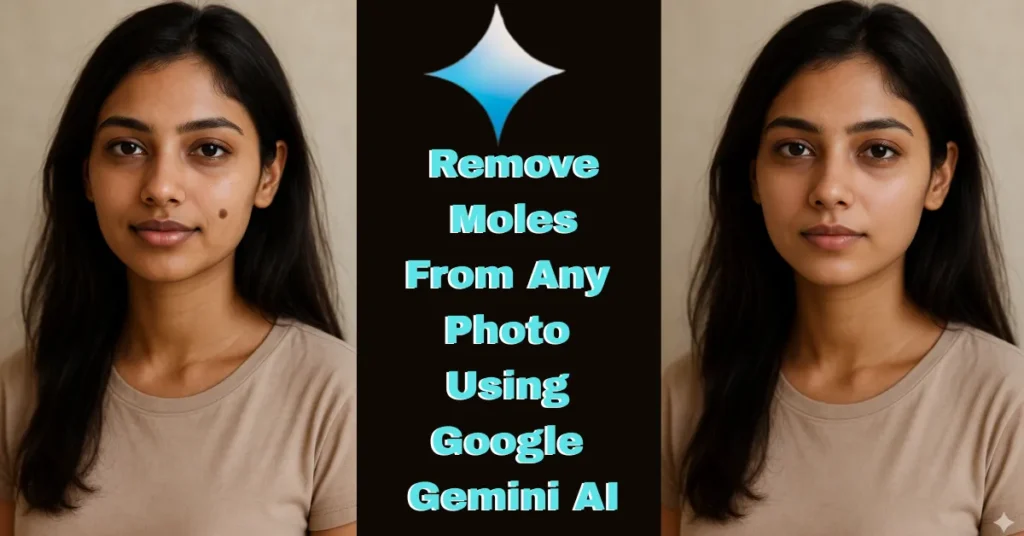
Have you ever clicked a great selfie but a small mole, mark, or skin spot ruined the final look?
Or maybe you’re editing a client photo and the skin doesn’t look as clean as they want?
The good news is—you don’t need Photoshop skills, expensive tools, or long tutorials.
Google Gemini AI can remove moles from any photo in seconds with unbelievably clean results.
In this guide, you’ll learn exactly how to remove moles using Google Gemini AI for free, how to get
spotless and natural-looking skin, and how to avoid over-editing mistakes beginners usually make.
Step By Step Ultimate Guide for Use Google Gemini Photo Editing Prompts
Google Nano Banana Gemini AI no needs any expensive plan or any skill of photo editing.
One simple and perfect prompt can give you the perfect solutions for remove moles from any photo using Google Gemini AI.
You can follow the following steps to Remove Moles From Any Photo Using Gemini prompt
1. At first, Open the Gemini Website
2. Login with Gmail ID
3. In a new tab, open the website- www.photoeditprompts.in
4. search on search box “mole”
5. Now, open the first link and copy the prompt from the page
6. Back to the Gemini website and paste the prompt
7. Click + icon and add the photo that has a mole.
8. Now hit “Run” button and wait for few seconds.
Let’s explore the most creative Gemini AI prompts that turn any photo into a mole-less face image into timeless DSLR-style shots.
Google Gemini Prompt for Remove Moles From Image

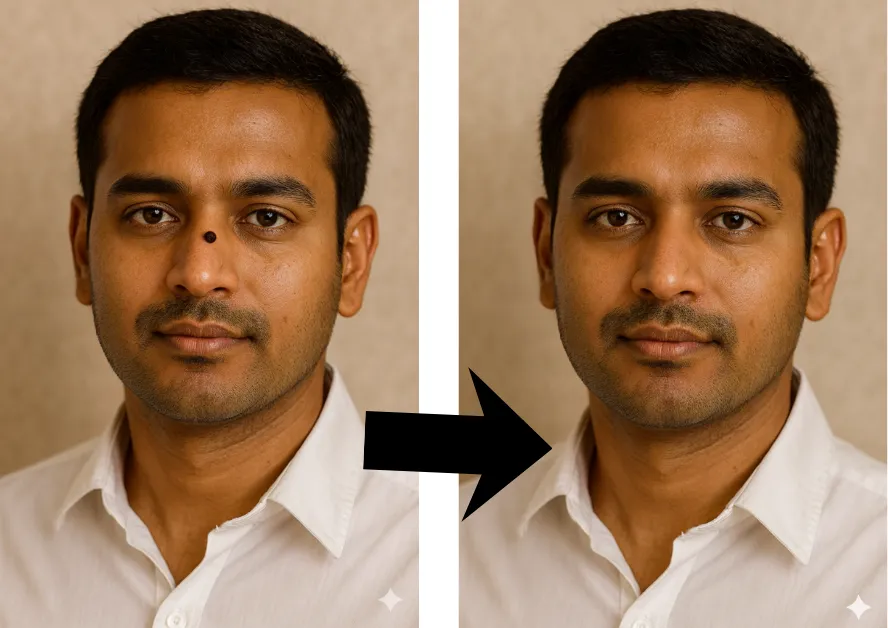
From this image , remove all visible moles and dark spots from the face while keeping the skin texture, pores, lighting, shadows, and facial structure exactly the same. Do not modify the person’s identity, expression, or hairstyle. Preserve the original image height, width, background, and framing. Make the edit subtle, natural, and fully realistic—no smoothing, no blurring, and no distortion.
Why Google Gemini AI Is Becoming the New Skin-Retouching Tool
Before we go step-by-step, it’s important to understand why people are switching to Gemini for photo cleanup:
✔ Fast: It edits in seconds
✔ Free: No subscription needed
✔ Beginner-friendly: No complex software
✔ Clean results: No blurry skin or “over-smooth” look
✔ Hyper-realistic output: Looks natural, not fake
Gemini’s image understanding is crazy good—it recognizes skin textures, shadows, and natural tones much better than most editing apps.
Conclusion
Remove Moles From Any Photo Using Google Gemini AI: Google Gemini AI makes mole or removal unbelievably using a few lines of text.
You just upload your photo, type a simple prompt or copy the prompt of this blog and use it.
Gemini cleans the skin naturally without losing texture or the image quality within a few seconds.
So, now you no need any Photoshop or paid photo editing tools.
The results look realistic and take less than ten seconds.
If you want fast, free, and natural photo retouching, this method is one of the easiest ways to improve any portrait instantly.
FAQs
Yes — with its image-editing feature, Gemini lets you ask it to add or remove objects or blemishes via natural language.
Exactly — Google Photos now integrates Gemini models so you can tell it what to change (like removing spots) by typing or speaking.
Yes, edited images include an invisible SynthID watermark to show they were AI-modified.